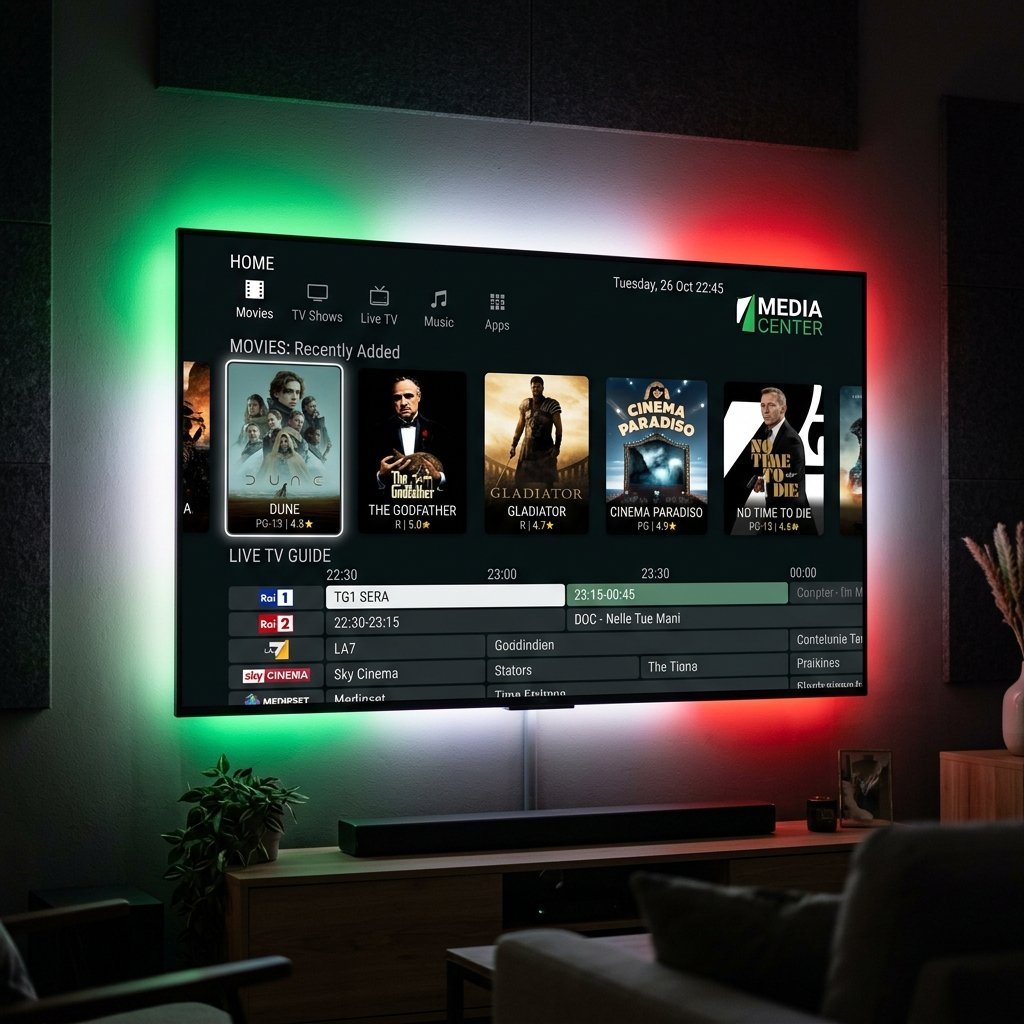
Kodi is a free, open-source media centre that runs on almost anything — Windows, Mac, Android, Firestick, Raspberry Pi. With the built-in PVR IPTV Simple Client, it becomes a full IPTV player with a proper EPG guide. Here's how to set up LuckyStreaming on Kodi.
Step 1 — Enable PVR IPTV Simple Client
Open Settings → Add-ons → My add-ons → PVR clients → PVR IPTV Simple Client, then Enable it. This works on Kodi 19 (Matrix), 20 (Nexus) and 21 (Omega).
Step 2 — Add your M3U playlist
- 1Open the client's Configure → General.
- 2Set Location to 'Remote path (Internet address)'.
- 3Paste your LuckyStreaming M3U URL into 'M3U Play List URL'.
Step 3 — Add the EPG guide
In the EPG Settings tab, paste the XMLTV EPG URL we provide so the full now/next TV guide populates across every channel.
Step 4 — Restart and watch
Close and reopen Kodi, then open the TV section — your channels, groups and EPG are ready. For a full walkthrough with screenshots, see our dedicated Kodi setup guide.
Prefer a simpler app? On Firestick and Android TV, TiviMate gives a slicker guide than Kodi — but Kodi is unbeatable if you already use it as your media centre.
Need a hand? Our team sets up Kodi IPTV every day — message us on WhatsApp and we'll get your line running.