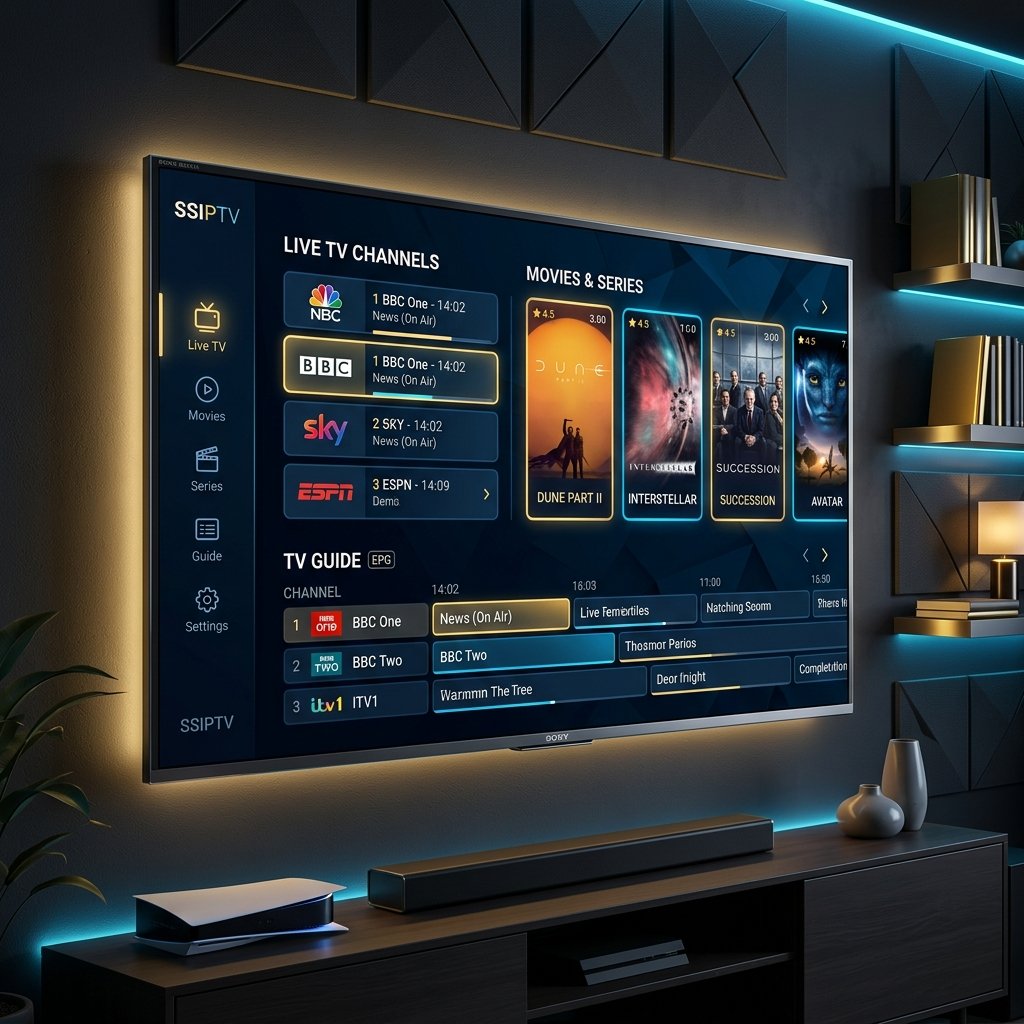
Smart IPTV — better known as SSIPTV — is the fastest way to watch LuckyStreaming on a Samsung or LG television without extra hardware. This guide walks you through installing the app, uploading your playlist, and getting the full EPG guide on screen.
What you need
- A Samsung (Tizen) or LG (webOS) Smart TV connected to the internet
- Your LuckyStreaming M3U URL (from your activation email)
- Five minutes and your TV remote
Install the SSIPTV app
- 1Open your TV's app store — Samsung Apps or the LG Content Store.
- 2Search for 'Smart IPTV' or 'SSIPTV' and install it.
- 3Launch the app — it displays your MAC address and a device key. Note the MAC address.
Upload your playlist
On a phone or computer, open the SSIPTV activation page (siptv.app), enter your TV's MAC address and paste your LuckyStreaming M3U link, then click Add. Reload the app on your TV and your channels appear.
Fixing 'trial expired'
SSIPTV includes a short free trial from the app's makers, after which they ask for a small one-time activation fee — this is separate from your LuckyStreaming subscription and unlocks the app permanently. Alternatively, install IBO Player, which many of our customers prefer.
Tip: send your MAC address to our WhatsApp and we'll load the playlist for you — no computer needed.
Still stuck?
If channels don't refresh, fully close the app (not just Home) and reopen it, or re-upload the M3U link. Our support team is on WhatsApp 24/7 if you'd like a hand.